

Advanced accessibility auditing with pioneering features
You might be eligible for a free Auditor account
Accessibility Cloud provides free resources to qualifying individuals to support the digital accessibility testing profession.
Information sources
Work smarter, not harder
Let automation test what it can, on one page or a thousand. Cover the rest with guided tests, or with manual tests and detailed testing instructions.
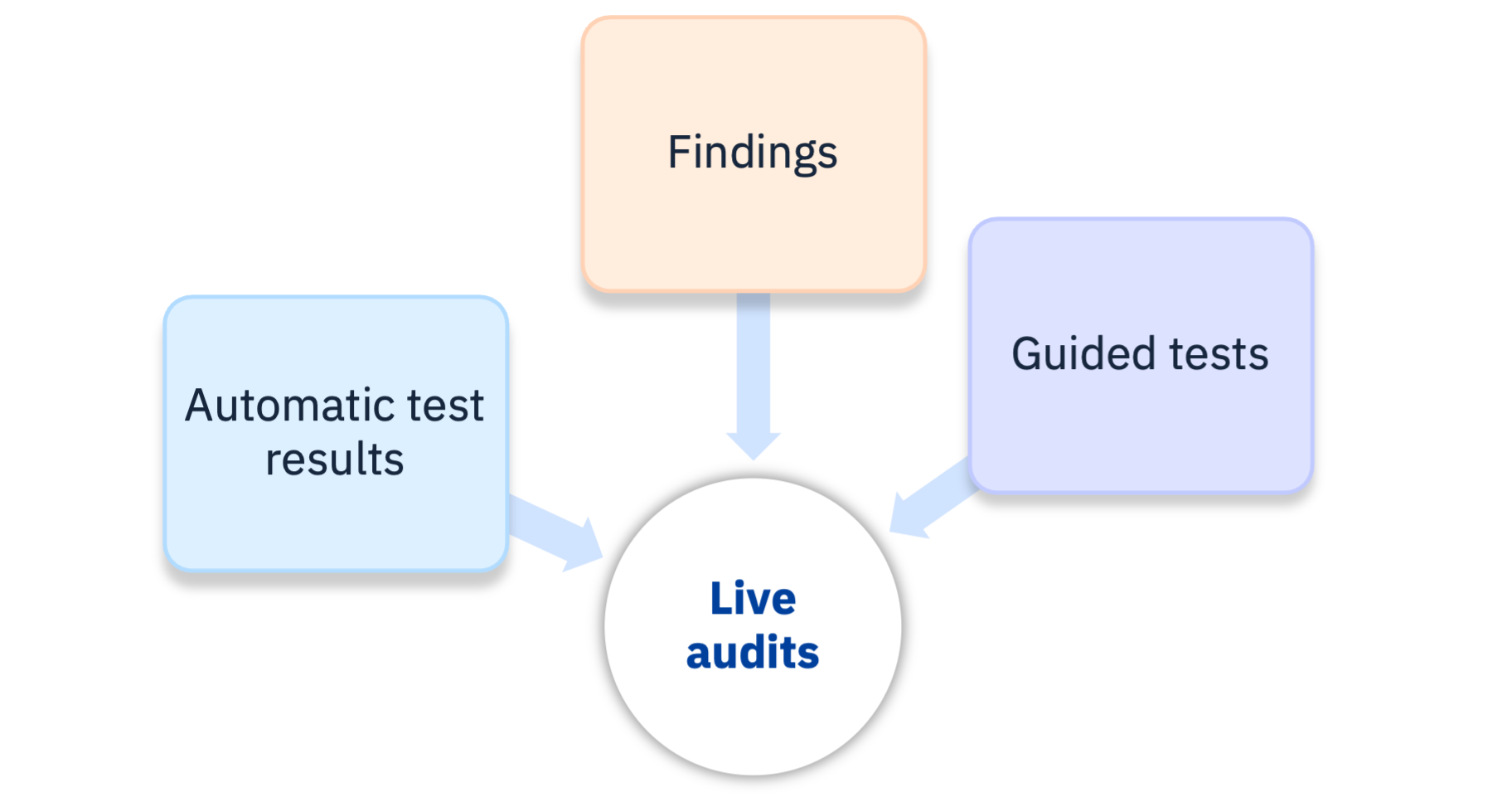
Information sources bring test results from elsewhere in Accessibility Cloud into your audit. Turn them on with a single click and watch your audit come to life. They are also what makes live audits possible.
You can include:
- Automatic test results from Accessibility Cloud’s automatic tests
- Findings: the defects you documented one by one
- Guided tests
Accessibility Cloud then processes the results, documents the violations, links them and adds them to your audit reports.
What the 90-second video shows:
- Automatic test results cover many pages, so they catch details you might miss.
- When an automatic test passes, the matching success criterion is marked “Cannot tell”, not “Passed”. Automatic tests only partly cover any success criterion, and tools can be wrong. You decide what is “Passed” or “Failed”, as it should be.
- Documenting defects as individual findings makes your audit much faster, and findings bring other benefits too.
- You can build an audit from one or more information sources. Accessibility Cloud keeps track of how engines, testing tools, data formats and guidelines relate to each other.
Findings
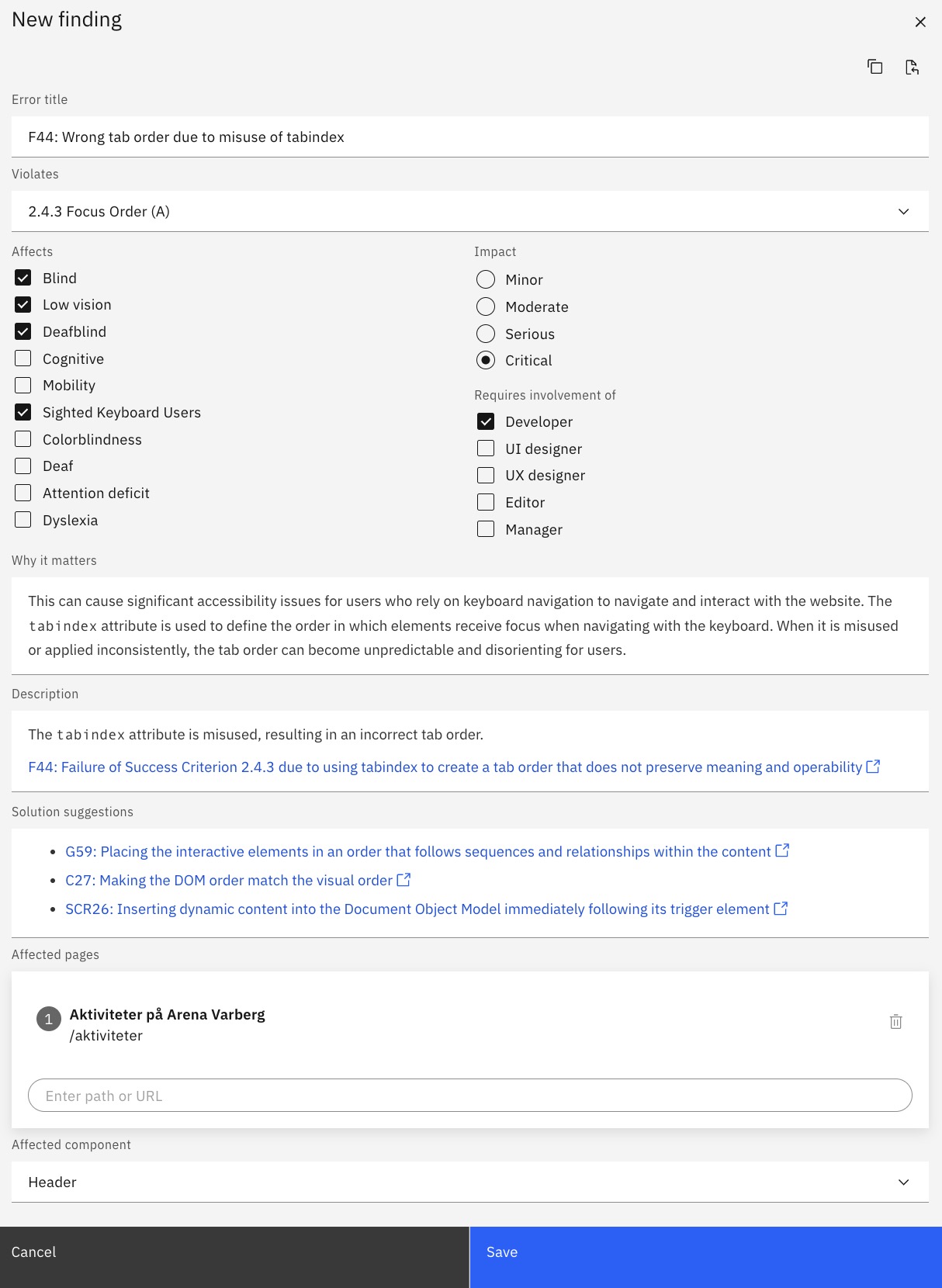
Findings are the backbone of manual accessibility testing. You can create them by hand, or from automatic test results or guided test results.
Each finding draws on a built-in snippet library linked to WCAG techniques for failures and how to fix them, so you write audits faster.
With findings, you can:
- Add them to accessibility audits
- Import them from JSON and CSV
- Export them to Excel, JSON and CSV
- Share them with Jira, GitHub, Zapier and others
- Use them as a defect backlog: send them to your bug tracker, and back to Accessibility Cloud for retesting
- Link them to WCAG techniques and success criteria
- Link them to pages and components
- Copy and paste them between site instances
- See, for each one, which disability groups are affected, the impact on users, and which roles need to help fix it
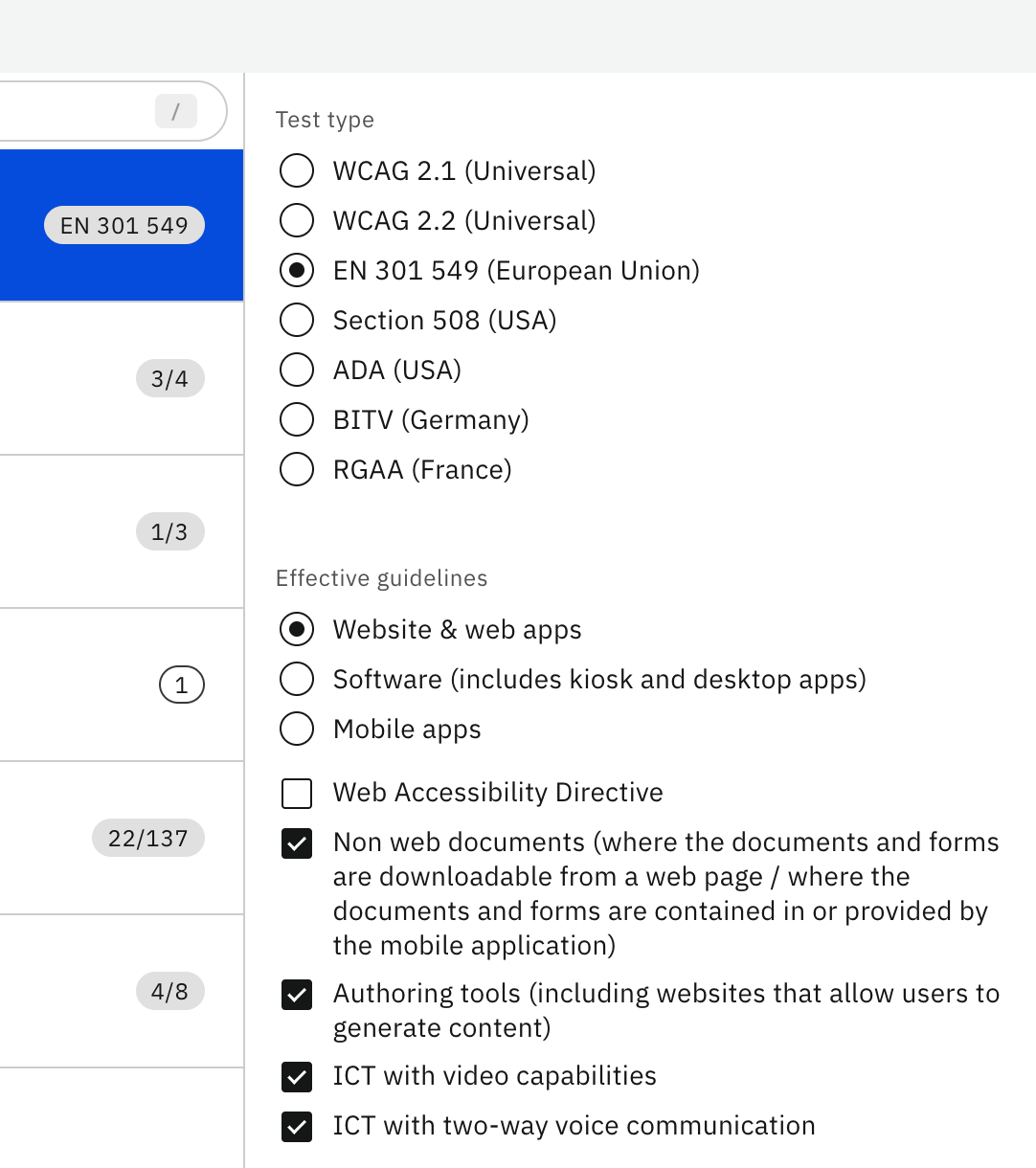
Supported standards and guidelines
With Accessibility Cloud, you can test against these standards, guidelines and legal requirements:
| Standard | Options |
|---|---|
| WCAG 2.1 | With or without AAA success criteria |
| WCAG 2.2 | With or without AAA success criteria |
| EN 301 549 (European Union) | Websites and web apps, software (including kiosk and desktop apps), mobile apps |
| BITV (Germany) | With or without WCAG 2.2 |
| Section 508 (USA) | |
| ADA (USA) | The same tests as WCAG, reported as ADA |
| RGAA (France) |
Audits as portable data
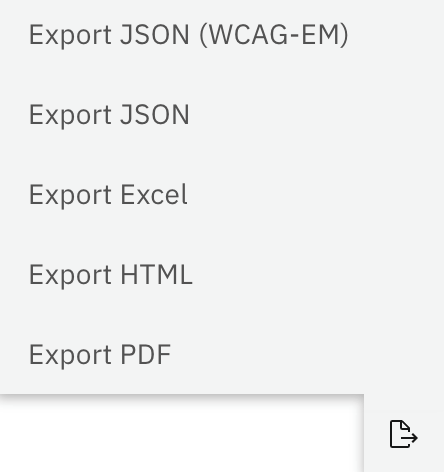
Everything in Accessibility Cloud can be exported, and audits are no exception.
Import and export
Export only
API access and transfers to remote repositories
Enterprise Edition and Monitoring Agency Edition can also return audits through API calls, and transfer them to remote repositories automatically.
Testing instructions
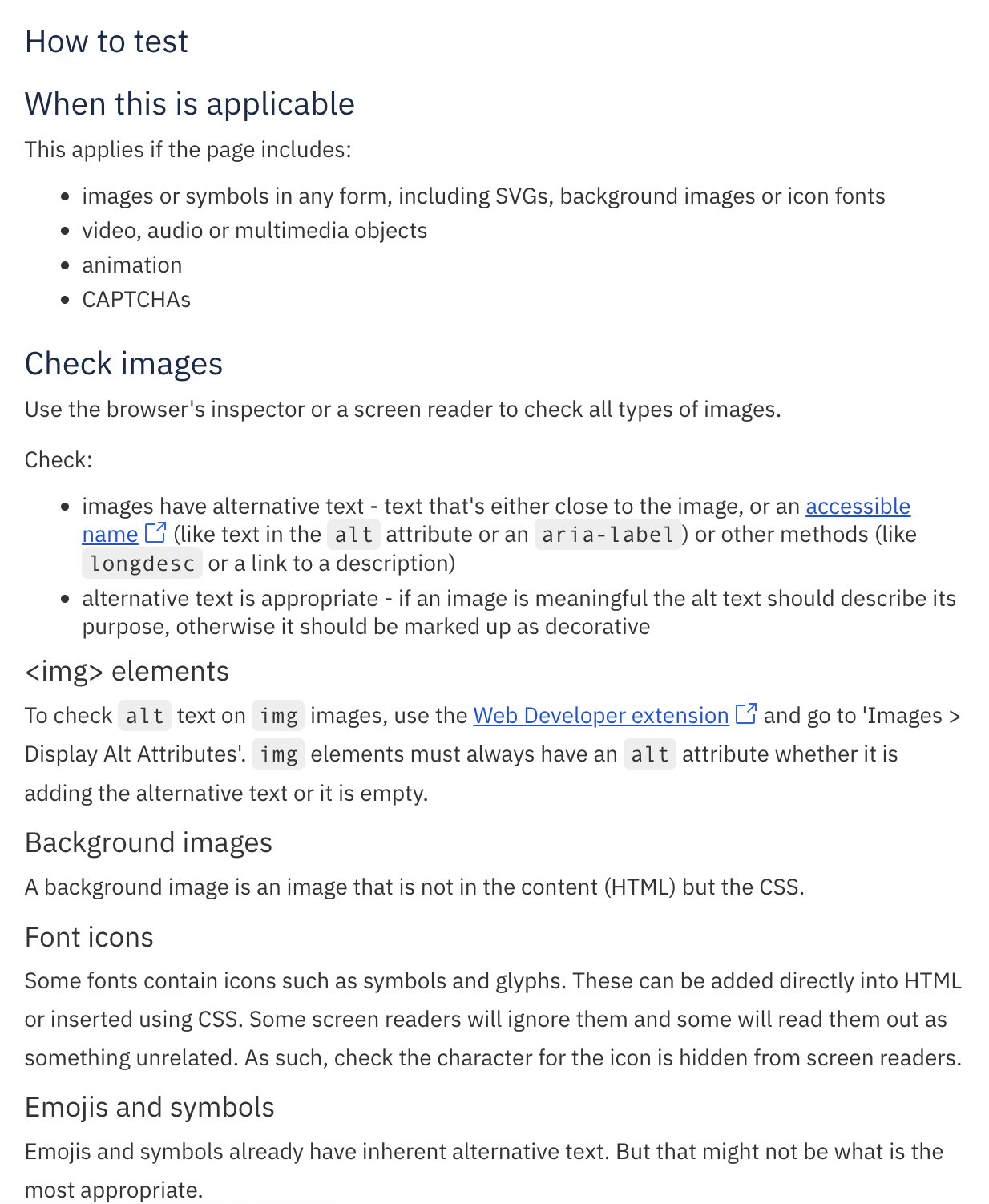
Accessibility Cloud includes detailed manual testing instructions from WCAG Primer, a great open-source resource.
Custom everything
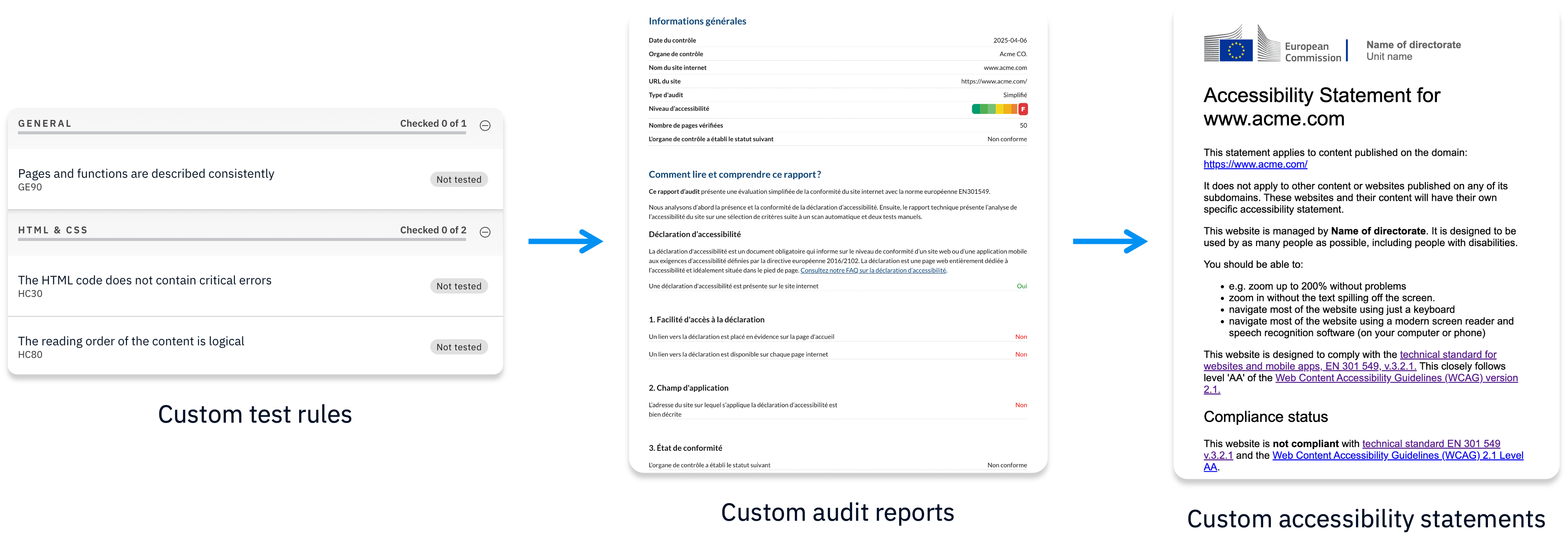
Accessibility Cloud’s advanced editions (Enterprise Edition, Partner Edition and Monitoring Agency Edition) let you customize all of these:
- Test rules: test against your own rules
- Outcomes: passed, failed, yes, no, can be improved, anything
- Report templates
Each one comes with an editor, so you can change it yourself, including all related information and every language version. You can also generate accessibility statements from the data of your audit.
You might be eligible for a free Auditor account
Accessibility Cloud provides free resources to qualifying individuals to support the digital accessibility testing profession.