Automatic website accessibility testing that sets the standard

From scanning thousands of pages to fixing the last error. AI-driven tests, powerful crawling, multi-engine scanning, unlimited on-demand testing, and a complete analysis and remediation workflow in one place.

Scanning

Accessibility Cloud combines multiple scanning engines, unlimited on-demand capacity, and advanced crawling to test your entire site, including pages behind logins, user flows, and content across multiple domains. Configure what gets scanned, set your compliance targets, and let the platform handle the rest.

Multiple accessibility defect scanning engines

Not all scanning engines catch the same issues. Accessibility Cloud lets you test with multiple engines, including ACAI, our AI-powered engine, axe-core, and QualWeb. You can test your site with the same engine your country’s monitoring agency uses, so you can make meaningful comparisons and ensure nothing slips through.

All editions, all plans
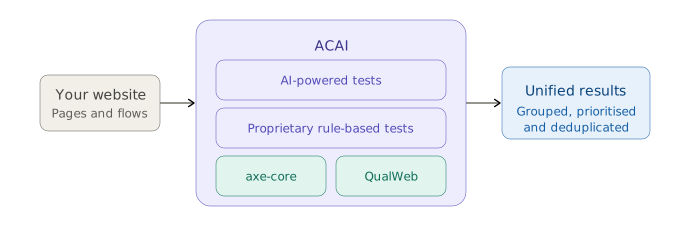
Diagram showing how ACAI processes your website. ACAI combines four testing components: AI-powered tests, proprietary rule-based tests, axe-core, and QualWeb. All results are merged into a single unified view that is grouped, prioritised, and deduplicated

User flow testing

Static page scans only tell half the story. Many accessibility issues surface only after user interactions, such as opening menus, filling out forms, selecting filters, or completing a checkout.

Accessibility Cloud can mimic real user interactions to uncover defects hidden behind membership flows, search, payments, shopping carts, booking systems, contact forms, and more. Visit your site, record your user flows, and let Accessibility Cloud test what other tools can’t.

Enterprise
Standard Monitoring Agency Infrastructure Auditor
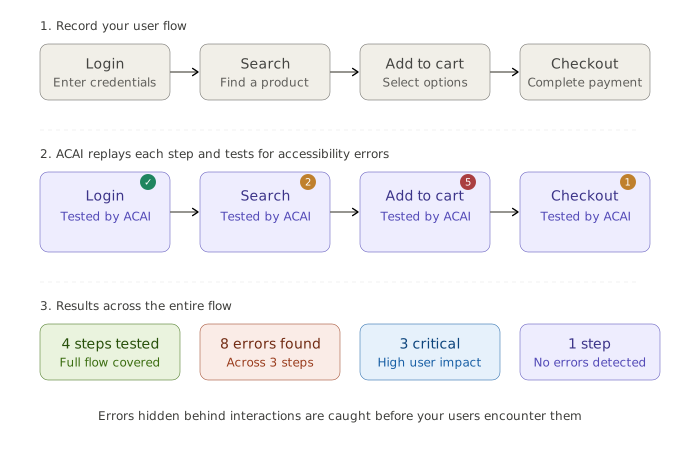
Diagram showing how user flow testing works in three phases. First, you record a user flow such as login, search, add to cart, and checkout. Then ACAI replays each step and tests it for accessibility errors, finding 2 errors on search, 5 on add to cart, and 1 on checkout, while login passes. The results summary shows 4 steps tested, 8 errors found across 3 steps, 3 critical with high user impact, and 1 step with no errors detected.

Unlimited on-demand accessibility defect scanning

Scan your entire site whenever you want, with no limits, on all plans. Accessibility Cloud’s hyper-scalable infrastructure means you’re never waiting or rationing scans.

Expected scanning speeds:

  • 5,000 to 10,000 pages per hour for sites hosted in Scandinavia
  • 3,000 to 5,000 pages per hour for sites hosted elsewhere in Europe
  • 2,000 to 3,000 pages per hour for sites hosted anywhere else in the world
  • 10,000 to 100,000 pages per hour with an Accessibility Cloud on-prem scanner

Scanning performance depends on how fast Accessibility Cloud can communicate with your web server. Public scanners are primarily located in Scandinavia, with new scanners deployed to additional geographies as needed.

All editions, all plans
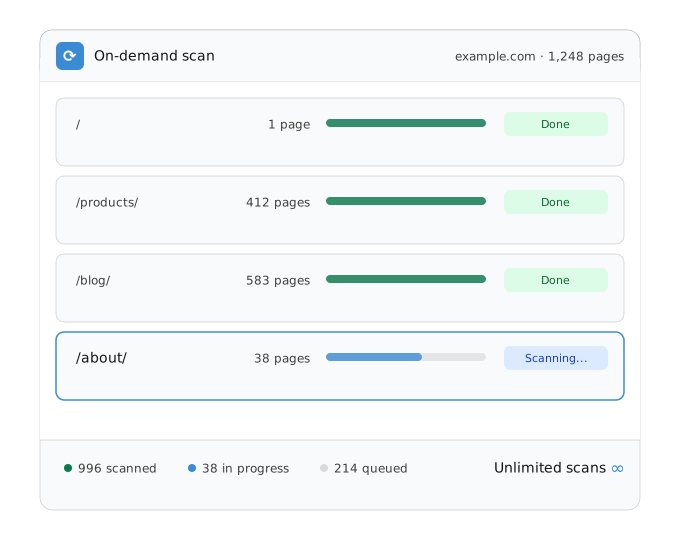
Scan progress card showing an on-demand scan of example.com with 1,248 pages. Four URL sections are listed: the root page (1 page, done), /products/ (412 pages, done), /blog/ (583 pages, done), and /about/ (38 pages, currently scanning). The footer shows 996 pages scanned, 38 in progress, 214 queued, and an unlimited scans indicator.

Scan pages and documents behind logins

Test pages and documents that require authentication. Accessibility Cloud supports re-authentication features and advanced scan parameters so you can reach the content your users actually interact with, not just your public-facing pages:

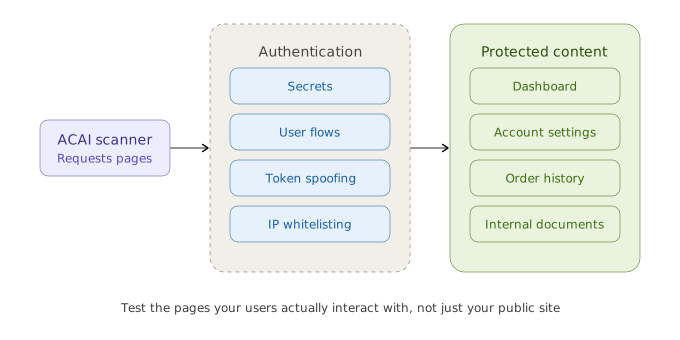
Diagram showing how Accessibility Cloud scans pages behind logins. The ACAI scanner on the left connects through an authentication layer offering four methods: secrets, user flows, token spoofing, and IP whitelisting. Once authenticated, the scanner reaches protected content including dashboards, account settings, order history, and internal documents.

Built to scale with your organization

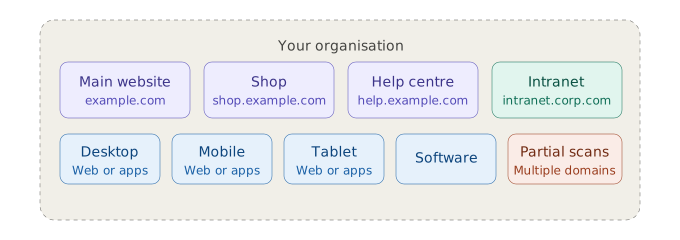
Add as many websites, subdomains, viewports, and partial scans as you need. Accessibility Cloud doesn’t force everything into a single domain. Whether you manage one site or hundreds across different regions and configurations, the platform adapts to how you work, not the other way around.

All editions, all plans
Boxes visually illustrating potential needs of organizations

Your organisation
Main website
Shop
Help centre
Desktop Web or apps 
Mobile Web or apps 
Tablet Web or apps 
Software 
Intranet 
Partial scans

Powerful scanning options

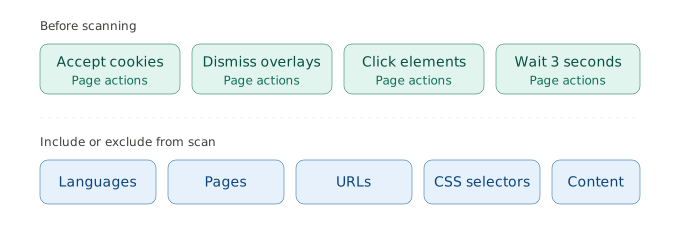
Fine-tune what gets scanned by including or excluding languages, specific content, pages, URLs, and CSS selectors across your sites. Configure the scanner’s behaviour, accept cookie banners, dismiss overlays, and interact with pages before testing commences.

All editions, all plans
Diagram showing scanning configuration options in two categories. Before scanning, four page actions are available: accept cookies, dismiss overlays, click elements, and wait 3 seconds. Below, five types of content can be included or excluded from a scan: languages, pages, URLs, CSS selectors, and content.

Multiple compliance targets

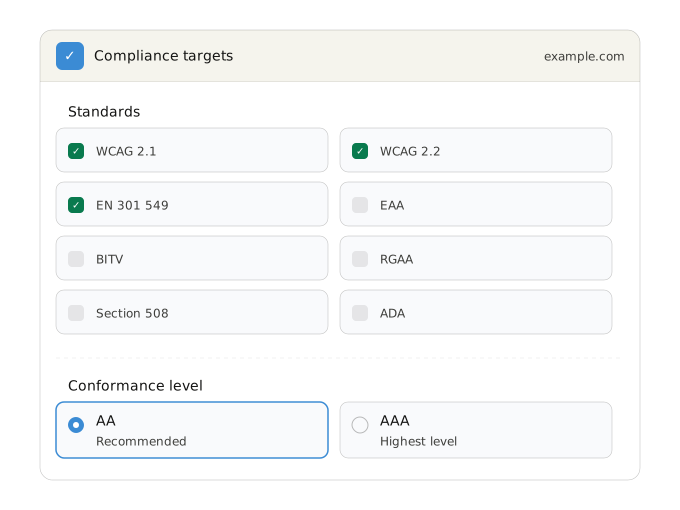
Set one or more compliance targets for each site, for both automatic and manual tests. Choose the conformance level (AA or AAA) and optionally include accessibility errors that go beyond strict violations. Supported standards include:

All editions, all plans
Compliance targets settings card for example.com. Eight standards are shown in a two-column grid: WCAG 2.1, WCAG 2.2, and EN 301 549 are selected, while EAA, BITV, RGAA, Section 508, and ADA are available but not selected. Below, the conformance level is set to AA (recommended), with AAA (highest level) also available.

Run your first scan today

Test your site with multiple engines, unlimited capacity, and full control over what gets scanned. No integration required.

Results and views

Every scan produces structured, actionable results, not just a list of errors. Four distinct views let your team approach results from different angles depending on whether you are fixing individual pages, tackling widespread patterns, reviewing improvement opportunities, or confirming potential errors flagged by AI.

Every scan produces four distinct views, each designed for a different stage of your remediation workflow:
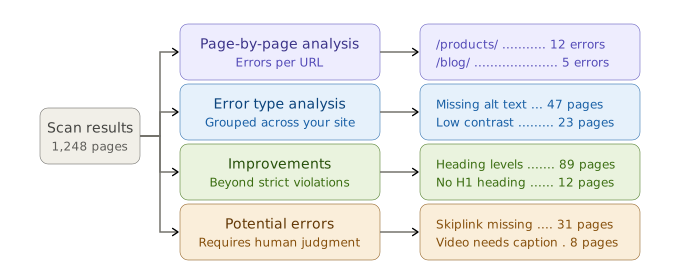
Diagram showing how scan results flow into four analysis views. Scan results from 1,248 pages branch into page-by-page analysis (showing errors per URL such as /products/ with 12 errors and /blog/ with 5), error type analysis (showing patterns like missing alt text across 47 pages and low contrast across 23), improvements (showing enhancement opportunities like heading levels across 89 pages and no H1 heading across 12), and potential errors requiring human judgment (such as skiplink missing across 31 pages and video needs caption across 8).

Page-by-page analysis

See every error found on a specific page. Drill into individual URLs to understand exactly what needs to be fixed before a page goes live or after a deployment. Filter errors by severity or role, review solution suggestions in context, and verify that previously detected errors have been resolved. Ideal for developers and editors working on individual pages, QA teams running post-release checks, or anyone who needs a complete picture of a single page’s accessibility status.

Error type analysis

See errors grouped by type across your entire site. Understand how widespread each problem is by viewing every page where a specific error occurs, and compare results between scan dates to track whether error counts are going up or down. Sort by occurrence count, discovery date, or alphabetically to focus on what matters most to your workflow. Convert errors to Findings for formal tracking, dismiss errors you have already addressed, and group error types by violated success criteria for a compliance-oriented overview of your site.

Accessibility improvements

Discover opportunities that go beyond strict violations. These are not compliance failures, but meaningful enhancements that make your site more usable for everyone. Review them the same way you review errors: filter by content type or role, sort by occurrence or impact, compare across scan dates, and convert improvements to Findings when you are ready to act on them.

Potential errors

Review errors that require human judgment. ACAI and other engines flag patterns that may or may not be true violations depending on context. Examine each potential error with the same detail view, solution suggestions, and visual highlighting available for confirmed errors. Confirm them to add them to your error count, or dismiss them to keep your results clean and your compliance reporting accurate.

All editions, all plans

See how your results are organised

Scan your site and explore page-by-page analysis, error type views, improvements, and potential errors in one place.

Filters and sorting

A scan of a large site can return thousands of results. Accessibility Cloud gives you the tools to cut through the volume: filter by content type or team role, deduplicate identical errors, group reoccurring patterns, and prioritise by user impact so your team always works on what matters most.

All editions, all plans
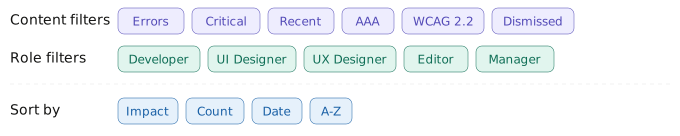
Filter and sorting toolbar with three groups. Content filters include errors, critical, recent, AAA, WCAG 2.2, and dismissed. Role filters include developer, UI designer, UX designer, editor, and manager. Sort options include date, A-Z, impact, and count.

Content filters

Focus on what matters most. Filter by pages with errors, pages with critical errors, pages with recently discovered errors, pages with AAA conformance level errors, pages with WCAG 2.2 errors, or pages with dismissed errors.

Role filters

Not every error is every team member’s responsibility. Filter results by the role best suited to fix the problem: Developer, UI Designer, UX Designer, Editor, or Manager. Each person sees what is relevant to them and knows where to start.

Find, sort, and prioritise at scale

When a scan returns thousands of results, raw lists are not enough. Accessibility Cloud groups reoccurring errors so you see one entry instead of hundreds, deduplicates identical errors found across multiple pages, and ranks everything by user impact so you fix what matters first.

Search across all results, switch between list views, and in error type analysis, group error types by violated success criteria for a compliance-oriented overview. Compare errors from two different scan dates to track your progress over time.

All editions, all plans
Illustration of a filter machine sorting accessibility issues by team role. Colored blocks representing different issue types enter from the right and pass through stacked filter layers labeled Developer, UI Designer, UX Designer, and Editor — each showing relevant skill icons like code, screen reader, captions, high contrast, color palette, keyboard, and user flow.

Thousands of results, zero guesswork

Let Accessibility Cloud prioritise, deduplicate, and organise your scan results so you can focus on fixes, not spreadsheets.

Error deep-dive

Select any error and get everything your team needs to understand it, fix it, and verify the fix. Every error record combines technical detail, visual context, AI-powered fix suggestions, and space for your own notes, so nothing gets lost between detection and remediation.

All editions, all plans

Error breakdown

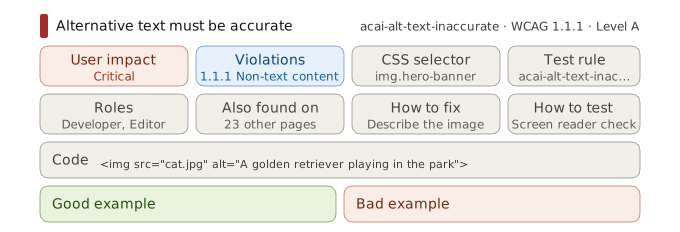
Every error includes a description of the problem, the user impact it causes, which WCAG violations it triggers, the CSS selector of the affected element, and a code excerpt showing the exact markup. You also see which roles can help with remediation, the test rule that flagged the error, and a list of every other page on your site where the same error occurs.

Each error also includes guidance on how to fix the problem, how to test that the fix works, and good and bad code examples.

All editions, all plans
Error breakdown card for the 'Alternative text must be accurate' rule (acai-alt-text-inaccurate, WCAG 1.1.1, Level A). Eight detail fields are shown: user impact (critical), violations (1.1.1 non-text content), CSS selector (img.hero-banner), test rule, roles (developer, editor), also found on 23 other pages, how to fix (describe the image), and how to test (screen reader check). A code excerpt shows the flagged markup with inaccurate alt text. Below, good example and bad example sections are provided for reference.

Visual highlighting

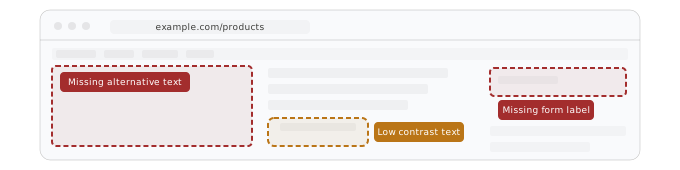
Errors are highlighted directly on top of your live site, so you can see exactly what users experience without switching between tabs or reading through code.

All editions, all plans
Illustration of elements on the page being highlighted visually

ACAI-powered solution suggestions

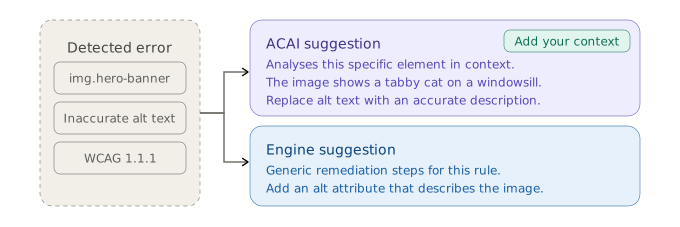
Two levels of fix guidance are available. ACAI analyses the specific element with the error and generates a tailored solution suggestion. You can add your own context and direction to refine the suggestion further. For broader guidance, scan engine-generated suggestions provide generic remediation steps.

All editions, all plans
Diagram showing two levels of solution suggestions for a detected error. The error context (img.hero-banner, inaccurate alt text, WCAG 1.1.1) branches to two options: an ACAI suggestion that analyses the specific element in context and identifies what the image actually shows, with the option to add your own context, and an engine suggestion that provides generic remediation steps for the rule.

Annotations

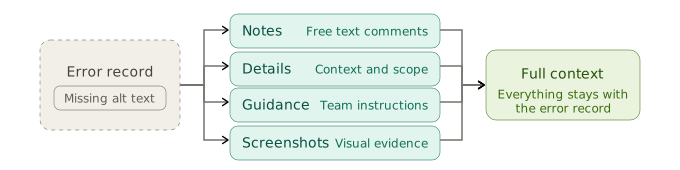
Add notes, details, guidance, and screenshots to any error. Everything stays attached to the error record, so your team always has full context when they pick up remediation work.

All editions, all plans
An example error record containing Notes, Details, Guidance, Screenshots, all coming together to supply the full context where everything stays with the error record

Every error, fully explained

From code excerpts to AI-powered fix suggestions, every error comes with what your team needs to resolve it.
See it with your own site’s data.

Workflow and export

Accessibility testing only matters if errors get fixed. Accessibility Cloud lets you use the project management and automation tools your team already uses, and lets you export your full dataset for reporting and compliance documentation.

Share errors where your team already works

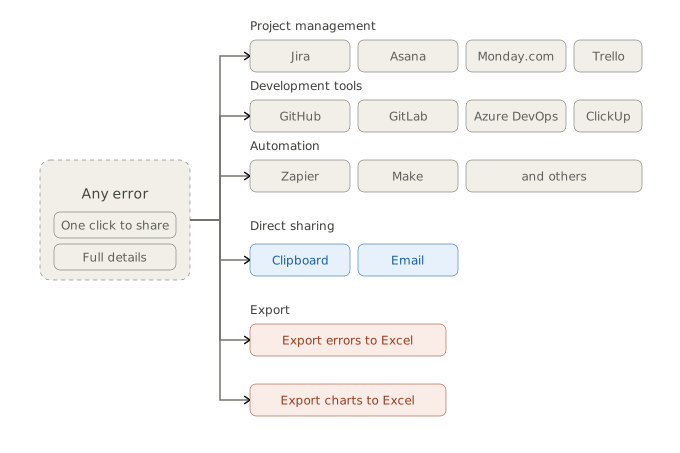
Send individual errors directly to the tools your team uses every day. Copy to clipboard, share via email, or share to Azure DevOps, GitHub, Jira, Trello, GitLab, Asana, Monday.com, ClickUp, Zapier, Make, and others.

No switching between platforms. No copy-pasting error details into tickets. One click from error to task.

Export your data

Export your full error dataset to Excel for reporting, compliance documentation, or offline analysis. Chart contents can also be exported to Excel separately.

All editions, all plans