Companion2026-07-27T12:52:22+02:00

Accessibility audits. Up to 10x faster.

A full manual WCAG audit normally means a spreadsheet, a stack of browser tabs, and days of repeating the same checks page after page. Accessibility Cloud Companion collapses that work into a guided flow inside your browser, and regular users report getting through audits up to 10 times faster.

It does the parts that eat your day, so you keep the parts that need your judgement:

  • No more building checklists. Companion detects what is on the page and offers only the checks that apply, out of hundreds of tests across 34 component types.
  • No more re-testing the same footer. Judge a component once and your verdict carries to every other page where it appears.
  • No more screenshot wrangling. Evidence is captured, cropped, and outlined automatically the moment you record a failure.
  • No more retyping findings into a report. Your audit imports into Accessibility Cloud in one click, screenshots and page lists intact.

It runs entirely in your browser as a side panel, so it can audit anything you can open: production sites, staging behind a VPN, a localhost dev build, a page behind a login, a flow three steps into a checkout. No crawler reaches those. You can.

Free to install. Free to use. No account required.

Manual WCAG testing, guided from inside your browser

Accessibility Cloud Companion is a revolutionary manual-testing and auditing extension.

Automated scanning is fast and it is necessary, but it can only decide a fraction of WCAG. In Companion’s own test catalogue, automated rules reach roughly 22% of the tests. The remaining 78% need a person: is that link text actually descriptive? Does the focus order match the visual order? Is the error message announced? Does the layout survive 400% zoom?

Companion is built for that 78% which require human involvement. Companion:

  • detects the components on the page (buttons, forms, tables, dialogs, tabs, carousels, media, landmarks and more),
  • builds the checklist for what it found, pre-filled with everything automation can already decide,
  • guides you through the rest, element by element, with how-to-test instructions in the panel,
  • captures the evidence (screenshots, selectors, notes) as you go,
  • and hands the finished audit to Accessibility Cloud in one click, where it becomes an audit report.

It opens with Alt + C (or the toolbar icon) as a side panel next to the page you are testing. It never takes over a tab, never opens a popup, and most importantly, it never gets in the way of your DevTools.

What makes Companion different

Audit localhost, staging, and pages behind a login

Companion runs in your browser, in your session. Localhost. Dev builds. VPN-gated staging. Authenticated dashboards. Pages that only exist after five form steps. If you can load it, Companion can audit it.

A checklist built from the components actually on the page

Most manual checklists are a static document you scroll past. Companion detects 34 component types and only offers the tests that apply to what it found, plus a small set of page-level checks (whole page, animations, draggable elements) that always deserve a manual look.

Judge each component once, not once per page

This is the feature that makes multi-page auditing survivable. Every verdict is keyed to the element, not the page. Judge the header CTA’s contrast once and Companion carries that verdict to every other page where the same element appears, accumulating the list of pages the finding applies to. Site-wide navigation, footers, cookie banners, and design-system components are evaluated once, not on every page.

Selectors for recurring page chrome are deliberately scoped to their landmark (header / nav / footer) so the same physical element produces the same selector everywhere, which is what makes the carry-over reliable.

Screenshot evidence captured the moment you record a failure

Mark a test as failed and Companion scrolls the element into view, screenshots the viewport, crops to the element, draws a red outline around it, and stores it with the finding. Tall elements are captured from their top edge so the diagnostically useful part is always in frame. You can paste, upload, or drag-and-drop up to two more screenshots into the notes of any finding, with a live markdown preview.

One finding that covers every page it affects

A failure recorded once applies to every page where the element exists. Re-confirming it doesn’t create a duplicate; it extends the finding’s page list. Your report says “this is broken on 14 pages”, not fourteen copies of the same defect.

An accessibility tool that meets WCAG 2.2 AA itself

Companion is used by accessibility professionals, so its own UI is held to WCAG 2.2 AA: full keyboard operation, visible focus indicators, correct ARIA roles and states, live regions for progress, colour never used as the only carrier of meaning (progress bars pair colour with distinct textures for colour-vision deficiency), reduced-motion support, and a complete dark mode.

Free forever

Companion is free. Auditing, tests, disability simulations, the screen reader simulation, capture, and every utility.

No account is required to use it. You only need an Accessibility Cloud account for one thing: pulling your findings into Accessibility Cloud to produce downloadable audit reports. Creating that account is free too.

Audit: Hundreds of WCAG checks, narrowed to what’s on each page

  • Hundreds of tests across 34 component types, mapped to WCAG 2.2 success criteria.
  • Every test carries a plain-language how to test instruction, a problem statement used for screenshot captions and alt text, and a description that becomes the finding body, so the exported report reads like it was written by a human rather than generated.
  • Tests that are advisory rather than conformance failures are marked as Improvements and kept out of the confirmed-violations list.

Open the tab and your checklist is already built

  1. Companion runs an automated pass on the current page.
  2. It detects the components on the page (with a subtle scan animation on the page while it works, reduced-motion aware).
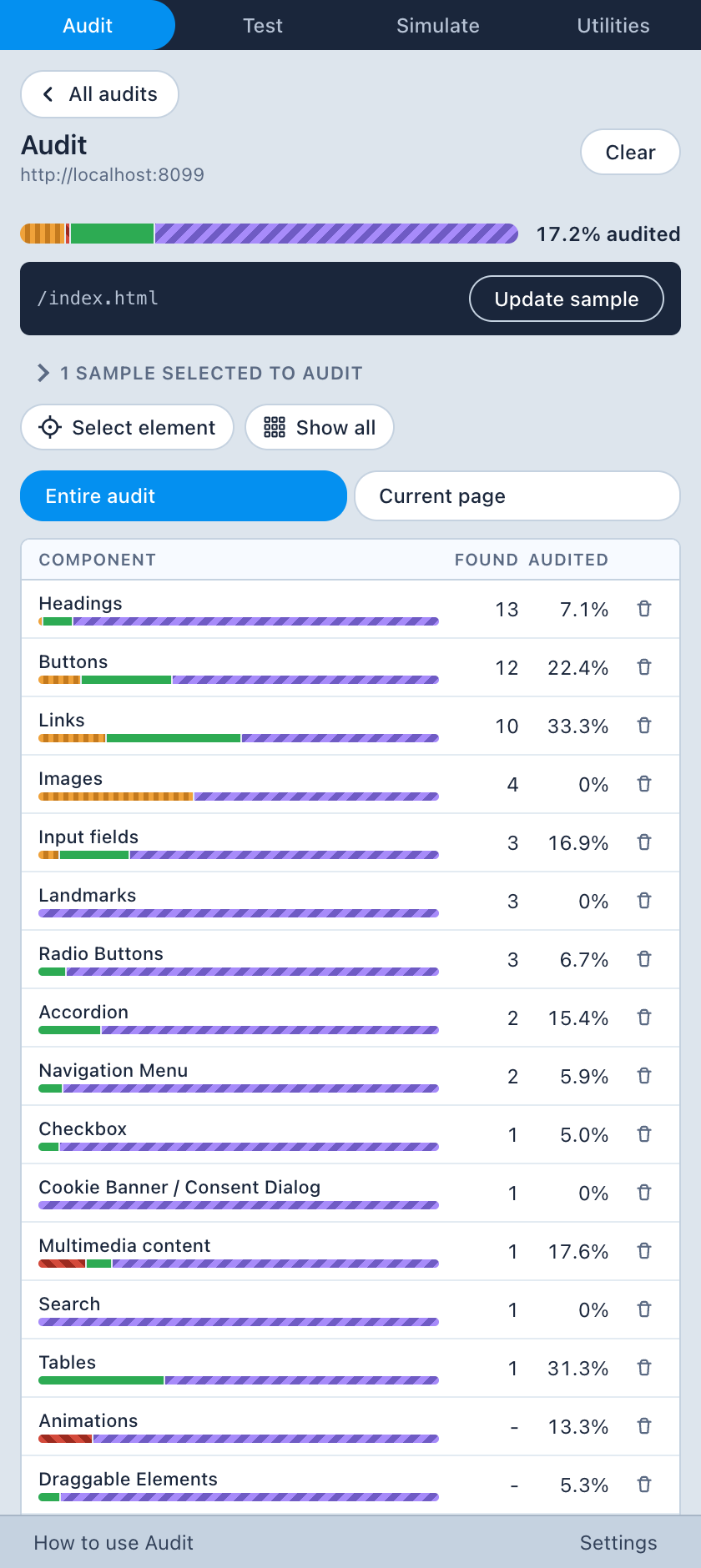
  3. It builds a components table: what was found, how much of it you’ve audited, and pass / fail / dismissed / not-applicable / needs-review counts per component, each with a progress bar.

Automation fills in what it can prove, you decide the rest

Automated results pre-fill the checklist so your time goes to judgement calls:

  • confirmed automated violations arrive as Fail, with the finding already created,
  • automated passes arrive as Pass, unless the rule only covers part of what the test asserts, in which case it arrives as Needs review (an automated check can prove a link has a name; only you can decide it’s descriptive),
  • inconclusive results arrive as Needs review,
  • everything with no automation behind it is marked Manual.

You can override any pre-fill.

Step through every instance without leaving the panel

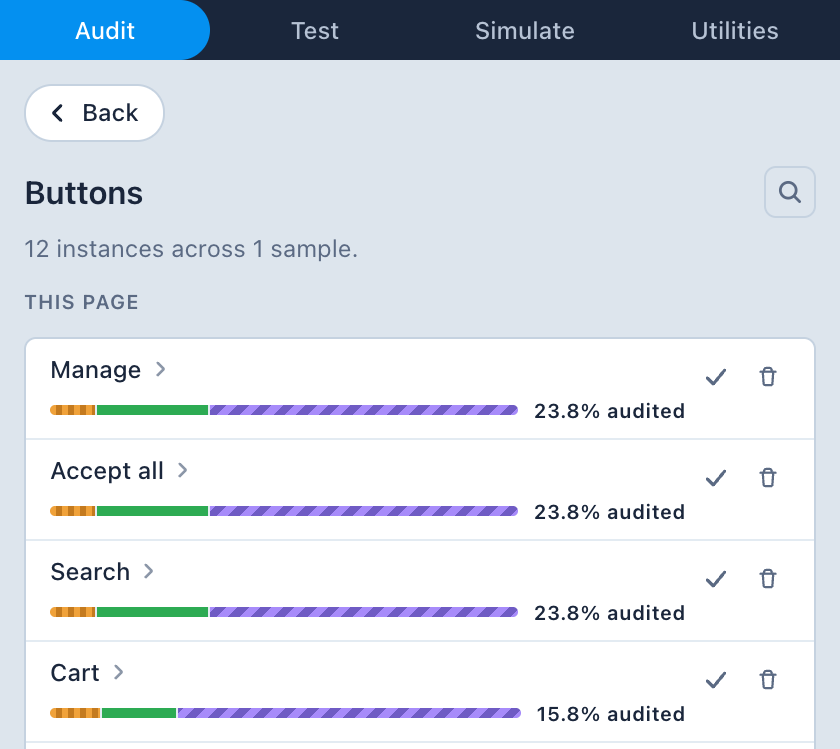
Drill into a component type and you get every instance on the page, all highlighted simultaneously on the live page so you can see the category at a glance before committing to one. Then, per element:

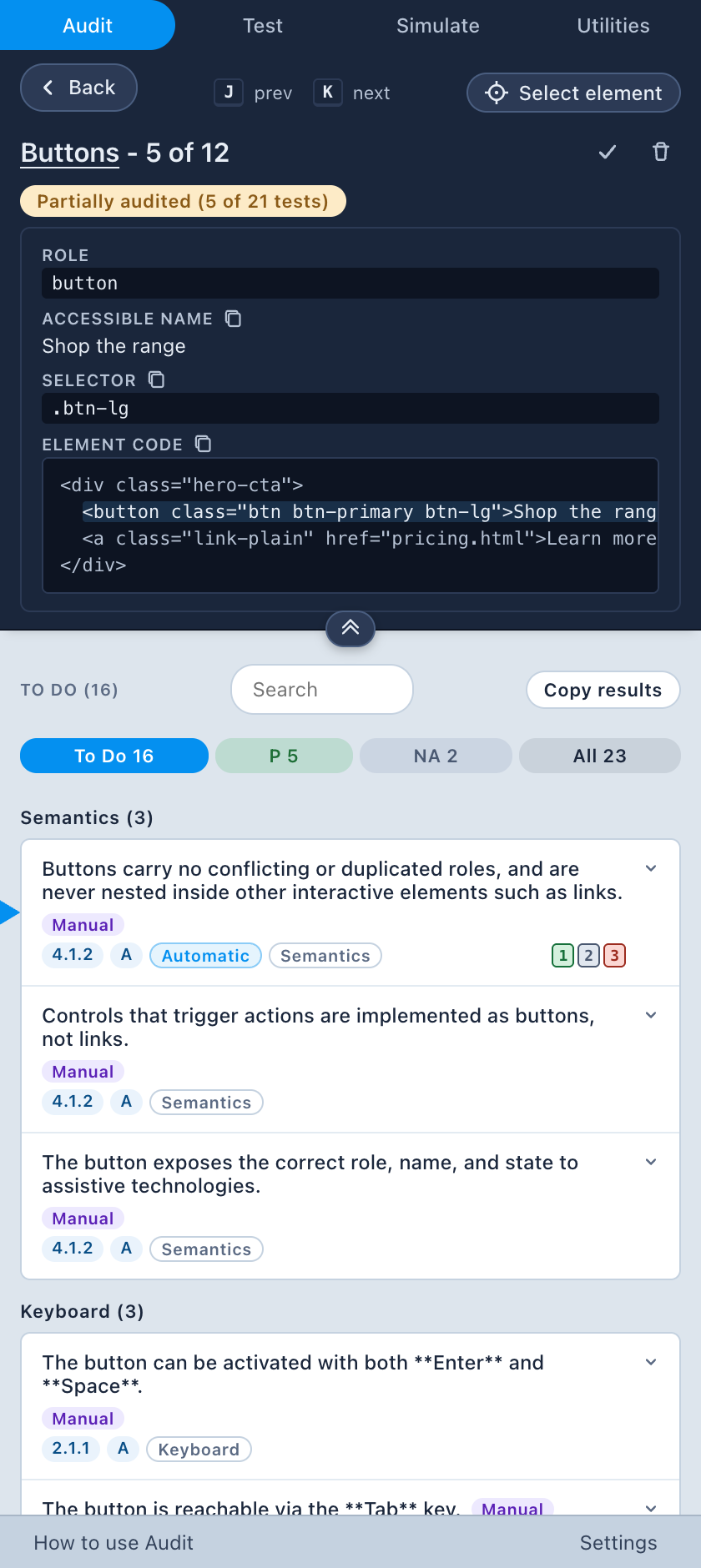
  • a sticky header with the element’s role, computed accessible name, selector (one-click copy), and an expandable code excerpt,
  • Prev / Next navigation (or J / K) through the instances, with the current element outlined on the page and scrolled into view,
  • an ancestor jump to move from a button straight into its wrapping landmark,
  • a Select element picker to re-target the panel to anything you click,
  • status tabs (To Do · Failed · Passed · Not applicable · Dismissed · All) so “what’s left” is always one tap away,
  • keyboard shortcuts (1 / 2 / 3) to record verdicts without leaving the keyboard.

Elements that are hidden in the current viewport are flagged so you know a test target needs a resize or a scroll before it can be judged fairly, rather than being silently failed. Elements hidden at capture time get their own bucket, with an eye toggle that forces them visible on the page so you can test them.

Apply one verdict to 40 identical components at once

Judged one of 40 identical product cards? Copy the element’s outcomes and paste them onto every eligible sibling in one action, with an undo in the toast.

Record the issues no catalogue covers

Not everything is in a catalogue. Custom findings let you record site-specific issues in the same audit, with the same export path: title, markdown description, screenshot (capture from page, upload, paste, or drop), an optional element selector picked from the page, and the WCAG success criteria it violates, chosen through a searchable combobox that includes every WCAG 2.2 criterion (A / AA / AAA) and can suggest criteria based on what you type (“keyboard trap”, “dialog dismissed”). You can also seed a custom finding from any catalogue test when the issue matches an existing check but the element wasn’t detected.

If you pick an element that already has findings on it, Companion shows you what you already recorded instead of quietly creating a duplicate.

See what failed, what’s pending, and what’s advisory

  • All findings: confirmed failures.
  • All needs review: everything awaiting your decision.
  • Improvements: best-practice items, kept separate so they don’t dilute conformance findings.
  • Filters by page sample and by WCAG success criterion.
  • An overall progress bar showing percentage audited, with a full breakdown in its accessible description.

Run audits on several sites side by side

Companion keeps a separate audit per site, listed on a home screen with progress, sample count, last edited time, and whether Accessibility Cloud has imported it yet. Open, continue, export, or clear any of them. A storage gauge shows how much room your audit screenshots are using.

Screenshot showing a list of detected button components and their audit progress.

Free forever

Companion is free. Auditing, tests, disability simulations, the screen reader simulation, capture, and every utility.

No account is required to use it. You only need an Accessibility Cloud account for one thing: pulling your findings into Accessibility Cloud to produce downloadable audit reports. Creating that account is free too.

Test: Live checks that answer what a scanner can’t

Interactive tests you fire at the page you’re on. Verdicts recorded in a test flow straight back into the matching audit row, and a “back to test” pill returns you to the test with its state intact.

Tab stops: the keyboard focus order drawn on the page

Records the keyboard focus order and draws numbered markers with connecting lines directly on the page: the fastest way to see DOM-order versus visual-order mismatches (WCAG 2.4.3). Cycle detection stops the recording automatically. Click any marker to jump into that element’s audit row.

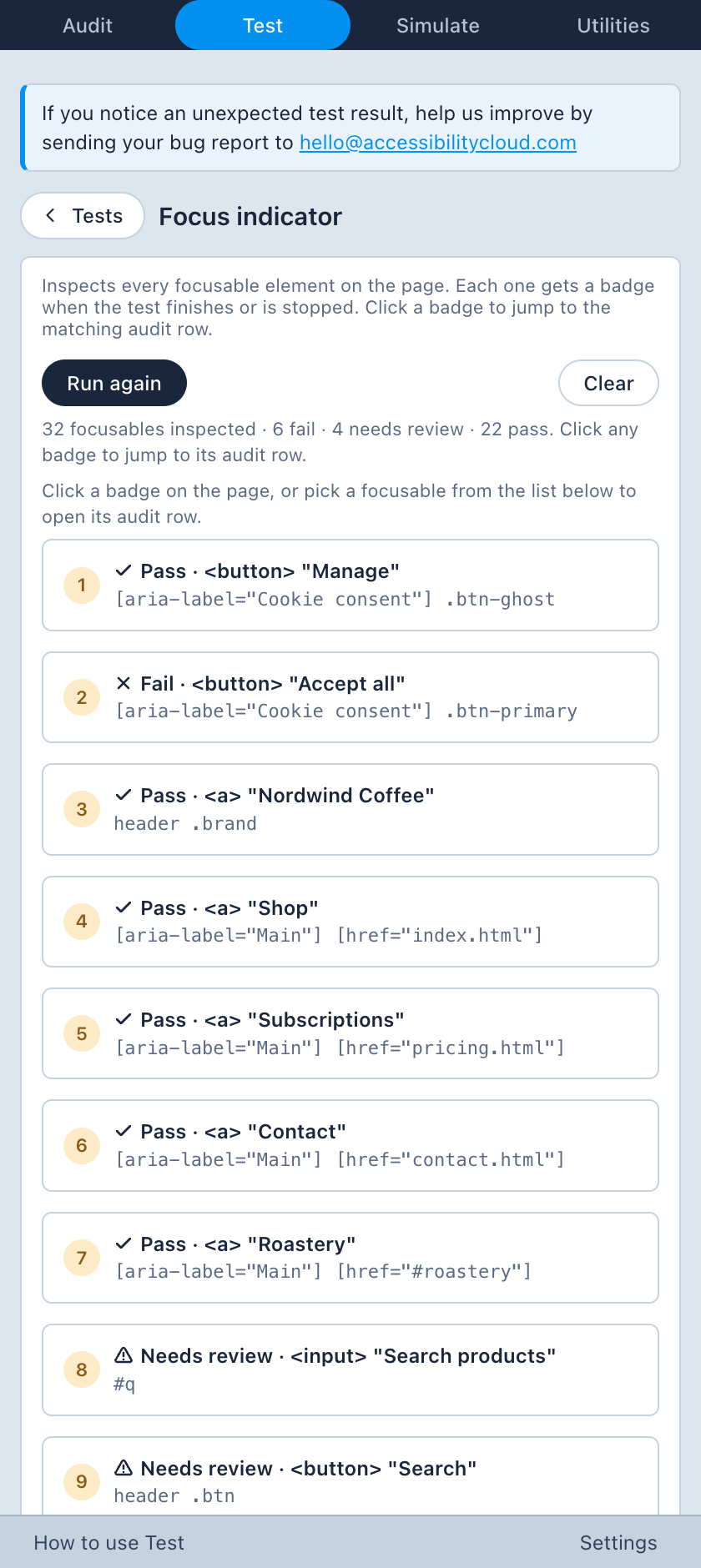
Focus indicator: proof from pixels, not stylesheets

Walks every focusable element and judges whether a focus indicator actually paints, by capturing the page before and after focus and diffing the pixels around the element. This catches what stylesheet inspection cannot: cascade overrides, inherited resets, indicators drawn by a parent, and indicators that only exist in theory. Covers WCAG 2.4.7 and 2.4.13.

Color contrast: clear the queue automation leaves behind

Automated contrast rules leave an “incomplete” bucket (gradients, transparency, text over images) that no scanner can resolve. This test turns that bucket into a work queue: numbered badges on the page, a list in the panel, an auto-measured ratio against the captured pixels, and Pass / Fail straight onto the audit row. Swatches can be overridden if the auto-detected colours are wrong. A manual mode lets you eyedropper any two pixels on the page and save the measurement as a custom finding. Covers WCAG 1.4.3 and 1.4.11.

Disable CSS: check the page still makes sense unstyled

Strips every author stylesheet so you can check that content order and meaning survive without presentation (WCAG 1.3.1 / 1.3.2), then hands you a picker to record verdicts on what you find.

Reflow: find what breaks at a 320 px width

Zooms the page to a 320 CSS px equivalent width and badges every element that overflows horizontally (WCAG 1.4.10).

Resize text: catch content that clips at 200%

Scales text to 200% and badges containers that clip, overlap, or hide their content (WCAG 1.4.4). A text-spacing transform (WCAG 1.4.12) is available directly from the relevant audit rows.
Free forever

Companion is free. Auditing, tests, disability simulations, the screen reader simulation, capture, and every utility.

No account is required to use it. You only need an Accessibility Cloud account for one thing: pulling your findings into Accessibility Cloud to produce downloadable audit reports. Creating that account is free too.

Simulate: feel the barriers instead of reading about them

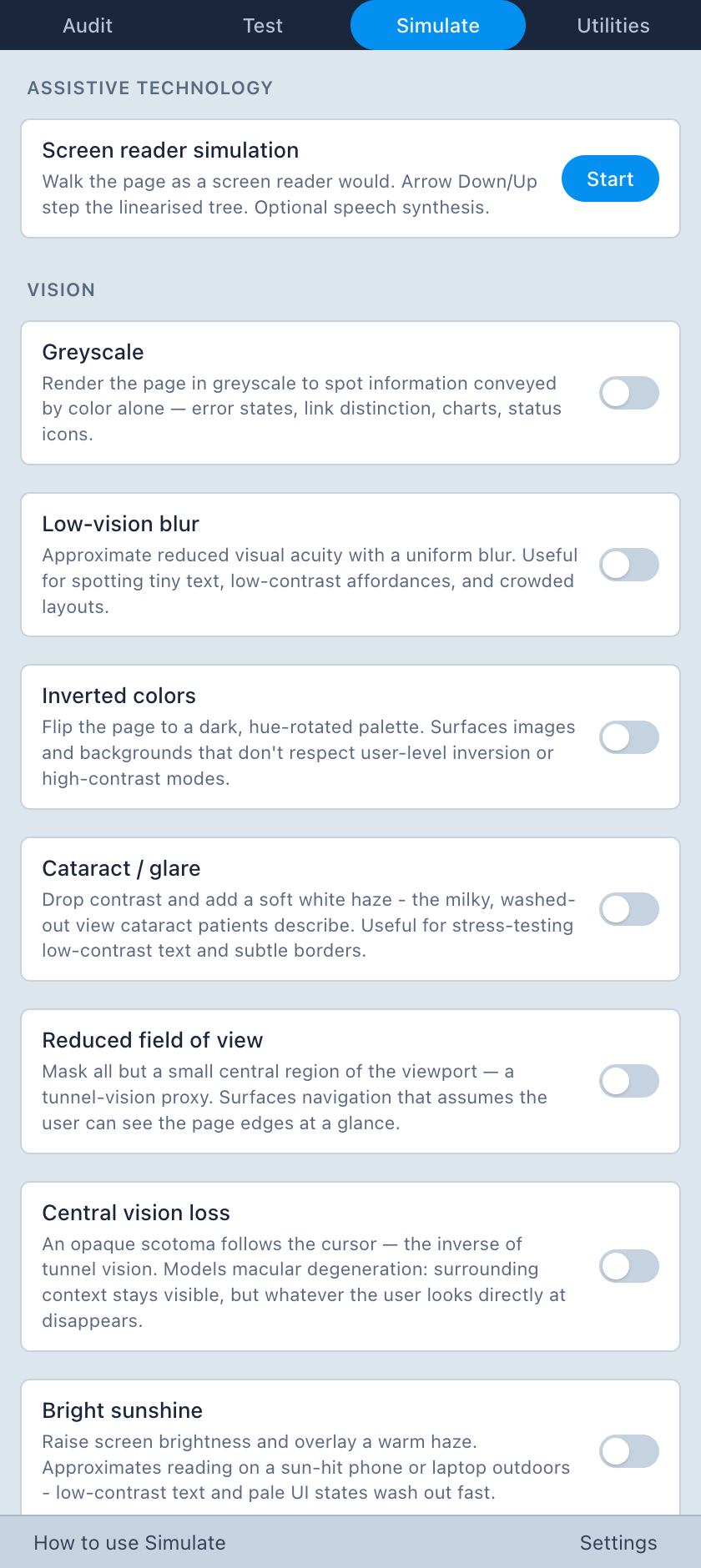
Twenty stackable simulations applied to the live page, plus a full screen-reader simulation. 

Vision: blur, glare, tunnel vision, and daylight washout

Greyscale, low-vision blur, inverted colours, cataract / glare, reduced field of view, central vision loss, bright sunshine.

Colour blindness: three deficits, stackable

Protanopia, deuteranopia, tritanopia, using scientific colour-transform matrices, and they stack, so you can check one affordance under several deficits.

Hearing: the page’s own audio, filtered through hearing loss

Presbyacusis, low-frequency loss, hyperacusis, auditory processing difficulty, tinnitus.

Motor: unsteady clicks, and a mouse that isn’t there

Pointer tremor displaces your clicks with a damped random walk, so small targets become genuinely hard to hit. Keyboard only blocks every pointer event, forcing you through the page with Tab, Enter, and Space.

Cognitive: reading under time pressure and distraction

Slow reading pace reveals the page gradually at an adjustable speed, exposing anything that times out before a slow reader gets there. Dyslexia rearranges letters inside words continuously. ADHD / cognitive overload adds drifting peripheral motion plus text that won’t sit still.

Screen reader: hear the page announced, row by row

A full screen-reader approximation inside the panel:

  • the page linearised into announceable rows, in document order, with role, accessible name, and state,
  • NVDA / JAWS / VoiceOver announcement formats,
  • spoken output with automatic walk-through, mute, stop/resume, and per-row language detection so a French paragraph on an English page is read with a French voice,
  • a live-region log showing the last few aria-live announcements, with assertive ones highlighted,
  • the current row outlined on the live page and scrolled into view,
  • keyboard control (arrows to step, Enter to activate, Esc to stop),
  • elements with no accessible name flagged in red.

It is a documented approximation, not a replacement for testing with a real screen reader, but it is enough to find the missing names, the wrong roles, the unannounced status messages, and the reading-order surprises before you ever open NVDA.

Free forever

Companion is free. Auditing, tests, disability simulations, the screen reader simulation, capture, and every utility.

No account is required to use it. You only need an Accessibility Cloud account for one thing: pulling your findings into Accessibility Cloud to produce downloadable audit reports. Creating that account is free too.

Capture: get pre-production pages into Accessibility Cloud

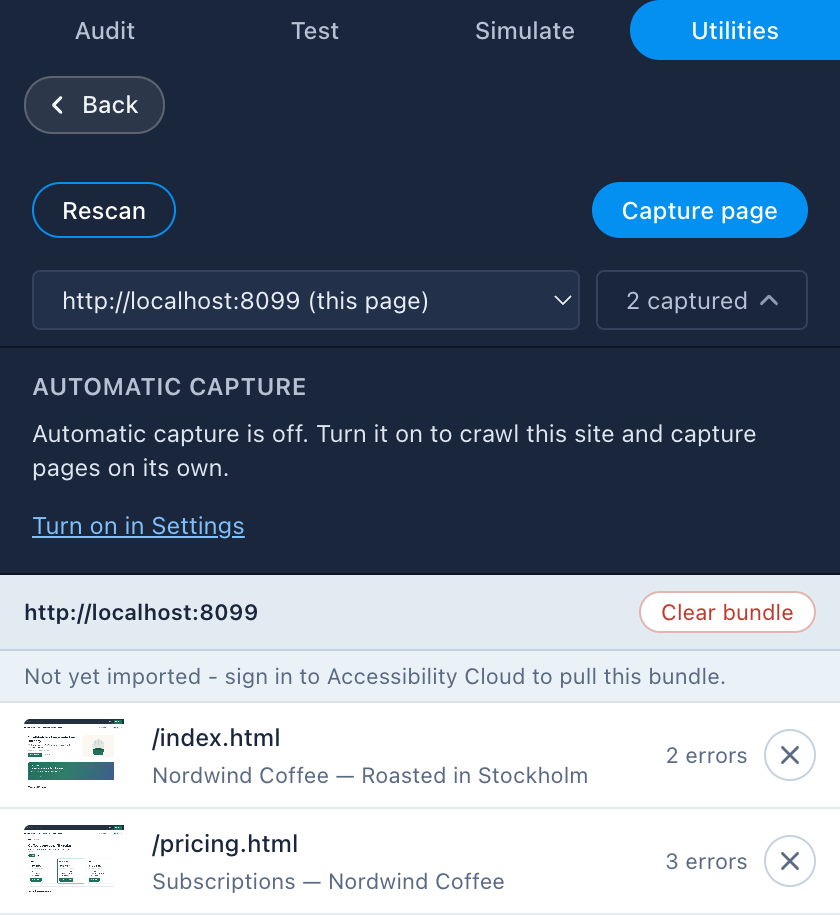
Companion runs the automated scan, and lets you capture the pages you choose into a bundle that the Accessibility Cloud web app can import, screenshots included.

  • You choose the pages. Capture is always user-initiated.
  • Automatic mode can walk a site section for you: set a page cap (1 to 500) and a delay between pages (1 to 10 seconds), press start, and watch it go.
  • Re-capturing a page replaces it. Interested in a specific state? Perform the action and then capture.
  • Nothing leaves your browser until you trigger the import from Accessibility Cloud.
Screenshot from the capture utility, showing two pages from a localhost site captured.

Free forever

Companion is free. Auditing, tests, disability simulations, the screen reader simulation, capture, and every utility.

No account is required to use it. You only need an Accessibility Cloud account for one thing: pulling your findings into Accessibility Cloud to produce downloadable audit reports. Creating that account is free too.

Utilities

  • User flow recorder. Record a user flow by performing actions you choose, review and edit the steps, and copy the flow cnfiguration and paste into Accessibility Cloud user flow settings, so scanner repeats your user flow on every scan.
  • Selector picker. Hover to outline, and use arrow keys to walk up or down the DOM, click to copy. Generates the shortest stable selector.
  • Copy cookies / localStorage / sessionStorage. One click, straight to your clipboard, formatted for Accessibility Cloud scan settings. Nothing is stored by the extension.
Screenshot from the utilities view where options to copy Cookies, localStorage, sessionStorage and Selector is visible.

Free forever

Companion is free. Auditing, tests, disability simulations, the screen reader simulation, capture, and every utility.

No account is required to use it. You only need an Accessibility Cloud account for one thing: pulling your findings into Accessibility Cloud to produce downloadable audit reports. Creating that account is free too.

Frequently asked questions

Is it really free?
Yes. Every feature in the extension is free.

Do I need an Accessibility Cloud account?
Only if you want to import your findings into Accessibility Cloud to produce reports.

Does it send my captured pages anywhere?
No. The only way data leaves the extension is when you trigger an import from the Accessibility Cloud web app.

Can it test pages behind a login or a VPN?
Yes, it runs in your browser using your existing session.

Does it replace automated scanning?
No, it complements it. Companion uses automated results as a starting point and focuses your effort on the majority of WCAG that automation cannot decide.

Does it replace testing with a real screen reader?
No. The screen-reader simulation is an approximation designed to catch missing names, wrong roles, unannounced updates, and reading-order problems early. Final verification should still involve real assistive technology and, ideally, users of it.

Which browsers are supported?
Chromium-based browsers.

What about my own audit methodology?
Companion comes with the Accessibility Cloud ruleset. Custom rulesets can be imported. Contact us.

Free forever

Companion is free. Auditing, tests, disability simulations, the screen reader simulation, capture, and every utility.

No account is required to use it. You only need an Accessibility Cloud account for one thing: pulling your findings into Accessibility Cloud to produce downloadable audit reports. Creating that account is free too.